100% Disk Usage on Windows? Here’s How to Find the Real Cause and Fix It
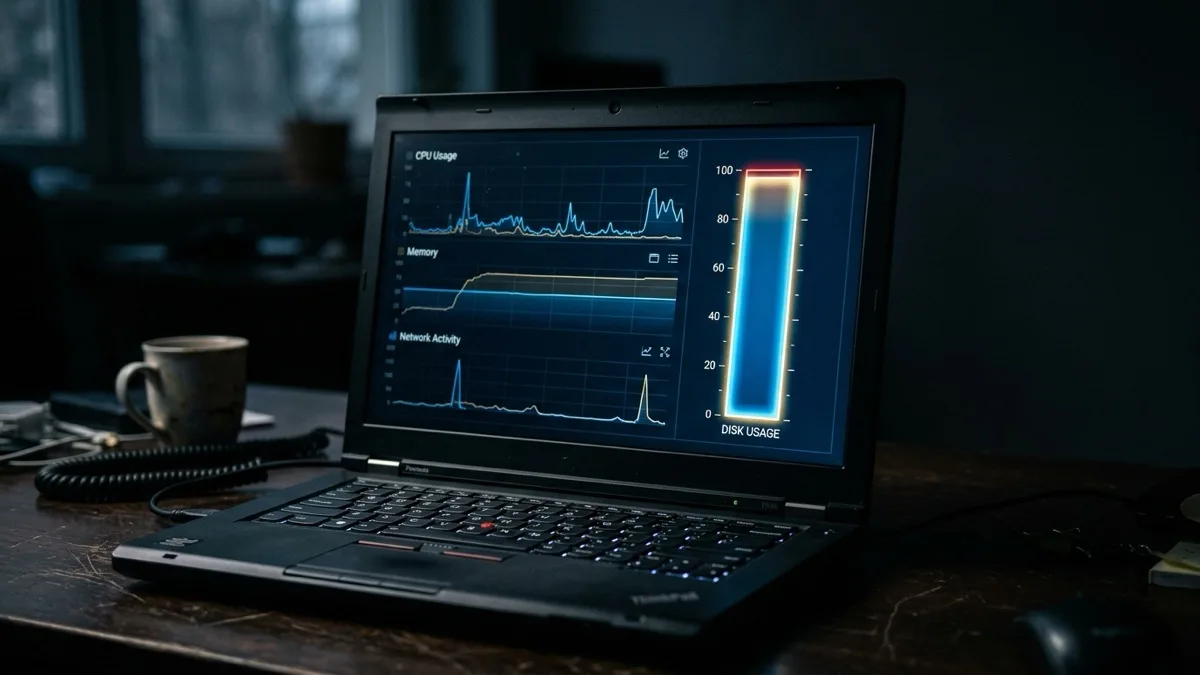
Quick answer: 100% disk usage means your drive is the bottleneck — every program is waiting in line for it, even if the drive is not full. Open Task Manager (Ctrl+Shift+Esc), click the Disk column to sort, and find what is hammering it. The usual suspects are Windows Search indexing, SysMain (Superfetch), Windows Update, your antivirus, or OneDrive sync — most are fixed by pausing or restarting a service. But if the column stays pinned at 100% with nothing obvious running, you may have a slow 5400rpm hard drive or a failing one. If you want it diagnosed and fixed live, our remote Windows support reads the drive in real time, flat $149.99 USD, No Fix No Fee.
What this guide covers
What 100% disk usage actually means
When Task Manager shows your disk at 100%, it is not telling you the drive is full. It is telling you the drive is maxed out on activity — it cannot read and write data fast enough to keep up with what Windows and your apps are asking of it. Everything else then waits in line. That is why a machine with a fast CPU and plenty of RAM can still feel like it is wading through mud: the disk has become the bottleneck.
This is far more common on traditional spinning hard drives (HDDs), especially the slow 5400rpm laptop drives that shipped in budget machines for years. A mechanical HDD can only do a few hundred small operations per second. A modern SSD does tens of thousands. So a background task that an SSD shrugs off can completely freeze an HDD at 100% for minutes at a time.
The good news: most cases are a single misbehaving service or sync process, and you can fix them in a few minutes. The bad news: a drive pinned at 100% with nothing obvious running can be an early sign the disk itself is failing — and that is the one case where you should stop and back up immediately.
How to confirm it in Task Manager
Before you change anything, confirm what you are actually dealing with. Do not guess.
- Press Ctrl + Shift + Esc to open Task Manager. If you see a small window, click More details.
- Stay on the Processes tab. Click the Disk column header once to sort by disk activity — the heaviest user jumps to the top.
- Watch for 30–60 seconds. Is one process consistently at the top, or does it rotate between several? Write down the names.
- Click the Performance tab, then Disk, and look at Active time. If it sits at or near 100% even when you are doing nothing, the disk is genuinely saturated.
The name at the top of that Disk column is your suspect. System, Antimalware Service Executable, SearchIndexer, Service Host: SysMain, and OneDrive are the ones you will see most. The rest of this guide tells you what each one is and how to calm it down.
The most common culprits (and quick fixes)
Work through these roughly in order. Restart the PC after each change and watch Task Manager again — fixing the right one usually drops the disk to single digits at idle.
1. Windows Search / SearchIndexer. Windows rebuilds its search index in the background, and on an HDD that can peg the disk for an hour after a big update. Let it finish overnight first. If it never settles, open Services (Win+R → services.msc), find Windows Search, and stop it to confirm the disk drops. You can rebuild the index from Control Panel → Indexing Options → Advanced → Rebuild.
2. SysMain (Superfetch). SysMain preloads apps you use often. It helps on SSDs but can thrash an old HDD. In services.msc, find SysMain, right-click → Stop, and set Startup type to Disabled. Watch the disk for a few minutes — if it calms down, leave it off.
3. Windows Update. A large update downloading or installing in the background routinely hits 100%. Check Settings → Windows Update. If something is downloading, let it finish, then restart. A stuck update can be reset by stopping the Windows Update service and clearing the SoftwareDistribution folder, but only do that if it has truly hung for hours.
4. Antivirus scan. Antimalware Service Executable (Microsoft Defender) or a third-party suite doing a full scan will saturate an HDD. Let scheduled scans run when you are not working, or reschedule them. If a third-party antivirus is permanently heavy, that alone is a reason to switch back to Defender. Persistent unexplained scanning can also mean an infection — see culprit 9.
5. Telemetry / DiagTrack. The Connected User Experiences and Telemetry service (DiagTrack) occasionally spikes the disk. You can set it to Manual in services.msc if it is a repeat offender.
6. Browser cache thrash. Chrome and Edge with dozens of tabs constantly read and write cache. On a low-RAM machine this hammers the disk. Close unused tabs, clear the cache, and consider a lighter tab habit. This overlaps heavily with general slowness — our guide on why your computer is so slow goes deeper.
7. OneDrive sync. A first-time sync or a large folder change makes OneDrive read/write continuously. Click the OneDrive cloud icon in the system tray → gear → Pause syncing for an hour to confirm. If that is the cause, let the initial sync finish on a wired connection, or enable Files On-Demand so files download only when opened.
8. Too little RAM (pagefile thrash). If you have 4 GB of RAM and a browser open, Windows offloads memory to the pagefile on disk — and on an HDD that is brutal. Check the Performance tab: if Memory is near 100% while Disk is pinned, RAM is the real problem. Adding RAM, or moving to an SSD so pagefile access is fast, both help.
9. Malware or a cryptominer. Hidden miners and malware can pin both disk and CPU, often under an innocent-looking process name. If the top disk user is something you do not recognize and a web search confirms it is suspicious, run a full scan. Our virus and malware removal service handles the stubborn ones remotely.
Culprit → symptom → fix table
| Culprit | Symptom in Task Manager | Fix |
|---|---|---|
| Windows Search | SearchIndexer at top, especially after an update | Let it finish overnight; rebuild or stop Windows Search service |
| SysMain (Superfetch) | Service Host: SysMain high at idle | Stop & disable SysMain in services.msc |
| Windows Update | System / Service Host high while updating | Let update finish; reset update service if hung for hours |
| Antivirus scan | Antimalware Service Executable spikes | Reschedule scans; switch heavy 3rd-party AV back to Defender |
| OneDrive sync | OneDrive reading/writing continuously | Pause syncing; finish initial sync; enable Files On-Demand |
| Low RAM / pagefile | Memory near 100% alongside Disk | Add RAM; move to SSD; close heavy apps |
| Slow 5400rpm HDD | Disk pinned at 100% under light load | Upgrade to an SSD (the real cure) |
| Failing HDD | 100% with freezes, clicking, or read errors | Back up now, check SMART, replace the drive |
| Malware / miner | Unknown process high on disk and CPU | Full malware scan and removal |
Check your drive health (SMART)
If you have worked through the services above and the disk is still pinned at 100% under light load — or worse, you hear clicking, see random freezes, or get read errors — stop tweaking settings and check the drive's health. Modern drives keep self-diagnostics called SMART data.
A quick free way to read it: open Command Prompt and run wmic diskdrive get status. If it returns anything other than OK, treat that as serious. For a fuller picture, a free tool like CrystalDiskInfo shows a health status (Good / Caution / Bad) plus reallocated-sector and pending-sector counts. Any "Caution" or "Bad", or rising reallocated sectors, means the drive is degrading.
A disk stuck at 100% is sometimes a dying drive, sometimes a runaway service or malware. We connect remotely, read it live, and fix the real cause; flat $149.99 USD; No Fix No Fee.
Book a remote speed fix — $149.99Here is the honest part: if SMART shows the drive failing, no software tweak will save it. Your priority shifts from speed to rescuing your data before the drive dies completely. Back up your important files immediately, and if the drive is already too unstable to copy from, our data recovery team can help. A failing drive only gets worse — every hour it runs is a risk.
The real cure for old laptops: an SSD
If your machine is more than a few years old and shipped with a mechanical hard drive, here is the truth that no service tweak can match: the disk is the problem, and a solid-state drive (SSD) is the cure.
Swapping an old 5400rpm HDD for an SSD is the single biggest speed upgrade you can make to an older Windows 10 or 11 laptop — far bigger than disabling services or adding RAM. Boot times drop from two minutes to fifteen seconds, the 100% disk freezes vanish because the drive can finally keep up, and the machine often feels newer than the day you bought it. SSDs are inexpensive in 2026, and a 500 GB drive is plenty for most people.
For desktops it is a quick internal swap. For laptops it varies by model — some are a five-minute panel removal, others are sealed. The trickiest part for most people is cloning Windows to the new drive so you do not lose anything; that step is where a lot of DIY upgrades stall. If you would rather not crack open the case, we can walk you through the cloning and migration remotely once the drive is installed.
When to get a remote fix
You can resolve most 100% disk cases yourself with the steps above. Get help when:
- The disk stays at 100% after you have tried the common fixes and a restart.
- SMART or wmic diskdrive get status reports anything other than OK — you want a second opinion before the drive fails.
- You suspect malware but scans come back clean while the disk stays busy.
- You are upgrading to an SSD and want Windows cloned over cleanly with nothing lost.
- You simply want it diagnosed live instead of working through a checklist.
RemoteFix 24/7 connects to your Windows PC remotely — anywhere in the world — reads the disk and SMART data in real time, and fixes the actual cause rather than guessing. It is a flat $149.99 USD (or $79.99 for a quick single-issue fix), same-day, with No Fix, No Fee. You can book a remote session in a couple of minutes, or browse our Windows support service for everything we cover.
Frequently asked questions
Is 100% disk usage bad?
A brief spike to 100% is normal — when Windows updates, indexes files, or runs a scan, the disk maxes out for a while and then settles. It only becomes a problem when the disk stays pinned at 100% during light use or at idle, making the whole PC sluggish. That points to a runaway service, too little RAM, or an aging or failing drive worth investigating.
Does 100% disk usage mean my hard drive is full?
No. The percentage measures how busy the drive is, not how full it is. You can have plenty of free space and still hit 100% usage because the drive cannot keep up with the read and write requests being made. A nearly full drive can make things worse, but a full drive and a 100%-busy drive are two separate problems.
Will disabling SysMain or Windows Search hurt my PC?
No, both are safe to disable. SysMain (Superfetch) only preloads frequently used apps, and Windows Search just powers the search box — turning them off costs you a little convenience, not stability. On an old hard drive, disabling them often fixes the 100% usage entirely. On an SSD they rarely cause trouble, so you can usually leave them on.
How do I know if my disk is failing and not just busy?
Run wmic diskdrive get status in Command Prompt, or check SMART with a free tool like CrystalDiskInfo. Anything other than OK or Good, plus warning signs like clicking noises, random freezes, or read errors, points to a failing drive. If you see those, back up your files immediately and replace the drive — a failing disk only gets worse with use.
Will upgrading to an SSD fix 100% disk usage?
In most cases on older laptops, yes. A slow 5400rpm hard drive simply cannot keep pace with modern Windows, so it sits at 100% under load. An SSD is dozens of times faster, so the same background tasks no longer saturate it and the freezes disappear. It is the single most effective upgrade for an aging Windows 10 or 11 machine.