Lost Your Authenticator App After a Phone Change? Recovery Guide
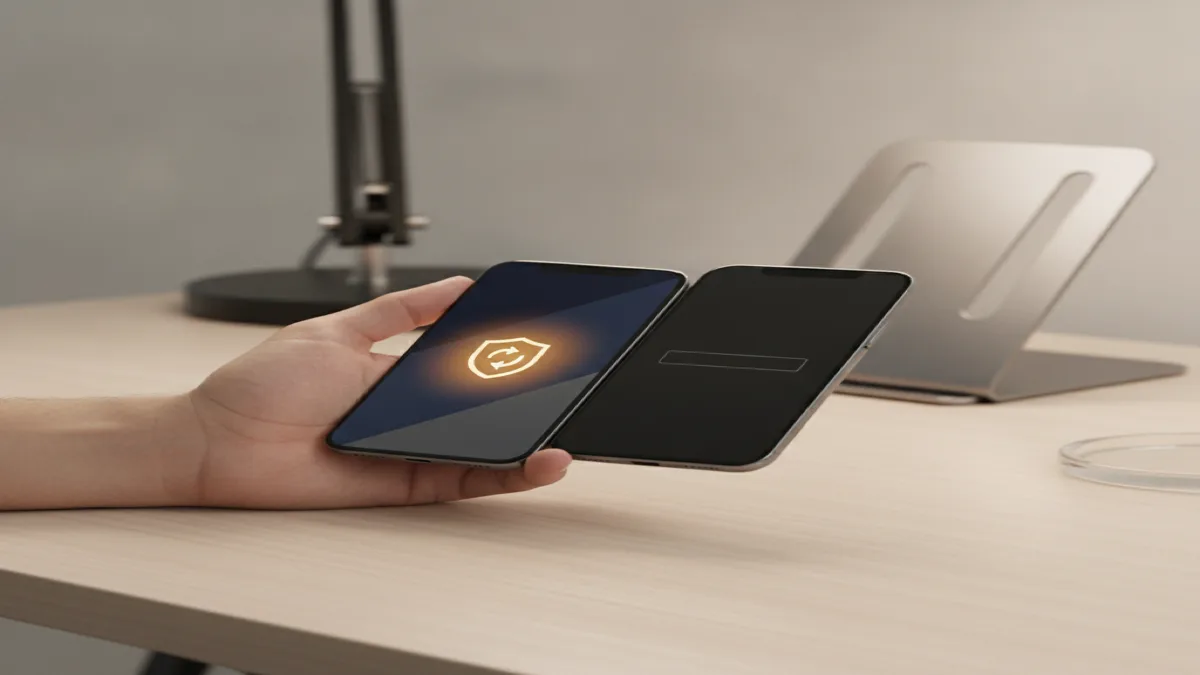
If you switched phones and lost your authenticator app, first check for backup codes you may have saved when you set up two-factor — those let you log straight back in and re-register the new phone. No backup codes and no access to the old phone? You'll need each service's account-recovery flow, which verifies your identity through your password, recovery email/phone, and sometimes a mandatory 24-72 hour security wait (this delay is intentional, to block attackers pretending to be you). If you still have the old phone even briefly, use Google Authenticator's built-in "Transfer accounts" feature or Authy's cloud sync before it's lost for good — that avoids the whole recovery process.
What this guide covers
First: do you still have the old phone, even briefly?
If your old phone still exists and turns on — even with a cracked screen, even if you're about to hand it back on a trade-in — do this before anything else, because this window closes permanently once the device is wiped, sold, or dead.
- Google Authenticator: open the app, tap the three-dot menu, choose "Transfer accounts," then "Export accounts." It generates a QR code. Open Authenticator on the new phone, choose "Import," and scan it. Every account moves over in one step.
- Authy: if you enabled multi-device or backup sync when you first set it up, just install Authy on the new phone and log in — everything restores automatically, no waiting period.
- Microsoft Authenticator: if cloud backup was turned on, sign into the same Microsoft account on the new phone's app and choose to restore from backup.
None of these require contacting support or waiting. They only work while the old device is still in your hands and functional — which is why this is step one before you do anything else.
If you saved backup codes
Most services show a set of one-time backup codes the first time you enable two-factor authentication, with a prompt to save them somewhere safe. If you did:
- On the login screen, choose "Use another way to sign in" or "Enter a backup code" (wording varies by service).
- Enter one of the unused codes.
- Once logged in, immediately go to Security settings and set up two-factor again on your new phone, then generate a fresh set of backup codes — the old ones are now partially used and should be replaced entirely.
This is the fastest recovery path there is: minutes, not days, and no identity-verification wait.
Account-by-account recovery (no backup codes, no old phone)
Without backup codes or the old device, you have to go through each service's recovery flow individually. Roughly:
| Service | Recovery path | Typical wait |
|---|---|---|
| Google account | "Try another way" on login → identity verification (recovery email/phone, account history questions) | Minutes to 72 hours depending on signals |
| Microsoft account | Account recovery form, verifies via alternate email/phone and account usage history | Usually 24 hours |
| Banking apps | Usually requires a phone call and identity verification with the bank directly — rarely self-service | Same day to a few days |
| Crypto exchanges | Often the strictest: government ID upload plus video verification, specifically because this is the highest-value target for account-takeover fraud | 1-5+ days |
Start this process the moment you realize you're locked out, not after you've exhausted every other option — the identity-verification queue is the slow part, and running it in parallel with everything else you're doing saves real time.
We walk you through each account's specific recovery process, help you get through identity verification correctly the first time (a rejected attempt often restarts the wait), and set up backup codes and cloud-synced 2FA properly once you're back in — so this doesn't happen twice. Flat $79.99 USD, any time zone, No Fix No Fee.
Get help now — $79.99Why some recoveries take 24-72 hours
The wait feels unreasonable when you're the real account owner and just want back in, but it exists deliberately: an attacker who has stolen your password will also try to disable your two-factor authentication to lock you out permanently and take over the account outright. The delay gives the real owner a window — usually via a notification to your recovery email — to notice and cancel a fraudulent recovery attempt before it finishes. Services can't tell your legitimate frustration apart from an attacker's urgency, so the safeguard applies to everyone equally. It's the same underlying logic covered in our guide on what to do in the first 10 minutes after being hacked — security systems are built around the assumption that speed favors the attacker, not the victim.
Setting it up so this never happens again
- Save backup codes properly. Not a screenshot on the same phone — a password manager entry, an encrypted note, or a printed copy kept somewhere separate from the device.
- Use an authenticator with backup/sync built in. Authy and Microsoft Authenticator both support cloud backup; standard Google Authenticator now supports account-based sync too if you turn it on in settings — do that before you travel, not after you lose a phone.
- Register a second authenticator device for your most critical accounts (email, banking) if the service allows more than one 2FA method — a tablet or a second device kept at home works as a fallback.
- Keep your recovery email and phone number current — the identity-verification recovery flow depends entirely on these being accurate and something you can still access while traveling.
If you manage accounts for a small team or family while traveling, this is worth setting up correctly across every device before you leave — our cybersecurity service covers a full 2FA and recovery-settings audit, not just emergency recovery.
We help travelers with account recovery from wherever you are:
Frequently asked questions
How do I recover my accounts if I lost my authenticator app on a new phone?
If you saved backup codes when you first set up two-factor authentication, use those to log in and re-register a new authenticator on your new phone. If you didn't save backup codes, most services (Google, Microsoft, most banks) offer an identity-verification recovery flow instead — usually a combination of your last known password, a recovery email or phone, and sometimes a waiting period of 24-72 hours for security review. Authy specifically supports multi-device sync if you enabled it before losing the old phone, which restores instantly without any waiting period.
Can I transfer Google Authenticator codes to a new phone?
Yes, if you still have access to the old phone. Google Authenticator has a built-in "Transfer accounts" option under the app's menu that generates a QR code to scan with the new phone's Authenticator app, moving every account over at once. This only works while you still hold the old device — once it's lost, wiped, or dead, this option is gone and you have to use each account's individual recovery process instead.
Why does account recovery take days for some services?
Services like Google and banks intentionally add a waiting period (commonly 24-72 hours) to two-factor recovery requests as a security measure, because an attacker who has stolen your password will also try to disable two-factor authentication to take over the account. The delay gives the real account owner a window to notice and cancel a fraudulent recovery request before it completes.
What's the best way to avoid this problem before it happens?
Save the backup codes every service shows you during two-factor setup, store them somewhere other than the phone itself (a password manager, encrypted note, or printed copy left with a trusted contact), and use an authenticator app with cloud backup or multi-device sync, such as Authy or Google Authenticator's built-in account sync, rather than an app with no backup at all.