How to Recover Deleted Files on Windows & Mac
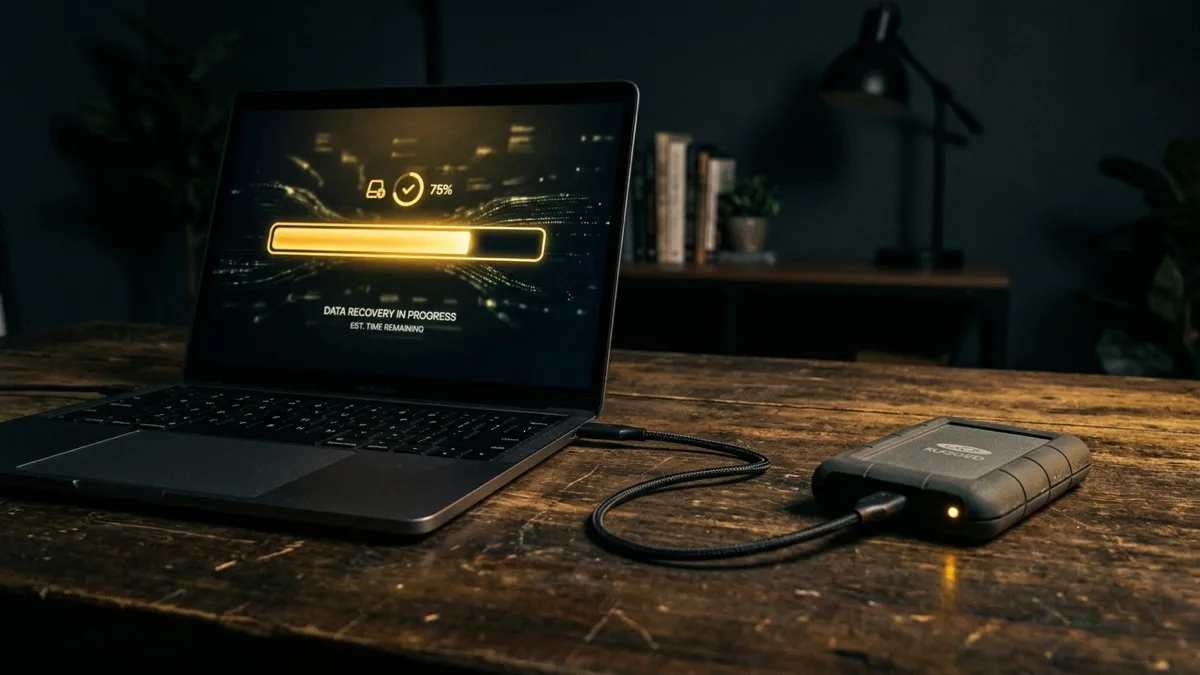
The single most important thing: the moment you realize files are gone, stop using that drive. Deleted files are not erased instantly — the space is just marked reusable, and they stay recoverable until something new overwrites them. Don't save files, install software, or run updates on that disk. Check the Recycle Bin or Trash first, then backups (File History, Time Machine, cloud version history). If those fail, a careful recovery tool — or professional remote data recovery — is your best shot.
What this guide covers
- Stop. Before you do anything else.
- Why deleted files usually aren't really gone
- Start with the easy wins: bin, backups, and cloud
- Recovery by scenario: pick your situation
- Recovery tools — and the SSD catch nobody mentions
- When the drive itself is failing — stop and get help
- Getting expert help — fast, from anywhere
Stop. Before you do anything else.
If you've just deleted something important — or emptied the Recycle Bin, or formatted the wrong drive — take a breath. Panicking and clicking around is what actually loses data. The single best thing you can do costs nothing: stop writing to that drive immediately.
That means: don't save new files to it, don't install a recovery program onto the same drive you're trying to recover from, don't run system updates, and don't "reorganize" folders to look for the missing file. Every one of those actions writes new data — and new data can land exactly on top of the file you want back.
If the deleted file was on your main system drive (usually C: on Windows or your startup disk on Mac), the safest move is to shut the computer down and recover from another machine, or have a professional connect remotely and work carefully. If it was on a USB stick, SD card, or external drive, simply unplug it and set it aside until you have a plan.
Why deleted files usually aren't really gone
Understanding this one concept tells you exactly what's recoverable and why speed matters. When you delete a file and empty the bin, your computer does not scrub the data off the disk. It simply removes the file's entry from the index and marks that space as "available." The actual 1s and 0s of your file stay physically on the drive — invisible to you, but fully intact — until the operating system reuses that space for something else.
This is why recovery is a race against overwriting. A photo you deleted ten seconds ago on a drive you immediately stopped using is almost certainly recoverable. The same photo on a drive you've been working on for a week may be partially or fully overwritten. Recovery tools work by scanning the disk for these "orphaned" data blocks and rebuilding the files before that happens.
There's one major exception — modern SSDs with TRIM — which we'll cover below, because it changes the odds significantly.
Start with the easy wins: bin, backups, and cloud
Before reaching for any specialized tool, check the places that keep copies for you. One of these solves the majority of everyday "I deleted it!" moments in under two minutes.
1. The Recycle Bin (Windows) or Trash (Mac)
A normal delete just moves the file here. Open it, find your file, right-click and choose Restore (Windows) or Put Back (Mac). It returns to its original folder. Note: Shift+Delete on Windows, or Cmd+Delete then emptying on Mac, skips or clears the bin — so if you did that, move to backups.
2. Windows File History & "Previous Versions"
If File History or a backup is on, right-click the folder that held the file, choose Restore previous versions, pick a date before the deletion, and restore. This recovers files that never touched the bin.
3. macOS Time Machine
If you have a Time Machine backup, open the folder, launch Time Machine, scroll back in time to before the deletion, select the file, and click Restore. This is the cleanest possible recovery on a Mac.
4. Cloud version history
OneDrive, Google Drive, iCloud Drive, and Dropbox all keep deleted-file areas and version histories — usually for 30 days. Log in through the web browser, look for a "Trash," "Bin," or "Deleted files" section, and restore from there. This works even if the file is long gone from your computer.
Recovery by scenario: pick your situation
Different deletions call for different tactics. Find your situation in the table, then follow the matching method. Methods get more advanced toward the bottom — and that's where the "stop using the drive" rule matters most.
| Your situation | Best first method |
| Deleted a file normally | Recycle Bin / Trash → Restore |
| Emptied the bin / Trash | Backup (File History, Time Machine), then a recovery tool |
| Shift+Delete (no bin) | Backup or cloud history, then recovery tool |
| File from USB stick or external drive | Unplug it, then scan with a recovery tool from another drive |
| Photos from a camera / phone SD card | Stop shooting, remove the card, scan with PhotoRec or Disk Drill |
| Drive accidentally formatted | Don't reinstall anything — deep-scan recovery tool or a pro |
| Partition disappeared | TestDisk (rebuild partition) — advanced; consider a pro |
| Drive not showing up / clicking noises | Physical failure — power off, do not DIY, get professional recovery |
For deleted photos specifically: a memory card is one of the friendliest cases, because you usually stop using the card the instant you notice. Pop it out, never let the camera or phone write to it again, and a photo-focused tool can often rebuild every JPEG and RAW file intact.
Recovery tools — and the SSD catch nobody mentions
When backups and the bin come up empty, a recovery program is the next step. The reputable, widely used options are:
- Windows File Recovery (winfr) — Microsoft's free command-line tool for Windows 10/11.
- Recuva — friendly, free, great for accidental deletes on Windows HDDs.
- PhotoRec / TestDisk — free and powerful; PhotoRec rescues photos and media, TestDisk rebuilds lost partitions. Cross-platform.
- Disk Drill — polished interface for Windows and Mac, free scan and preview before you commit.
One non-negotiable rule: install the tool on a different drive, and recover files to a different drive than the one you're scanning. Recovering a file back onto the same disk you're rescuing it from can overwrite other files you haven't gotten to yet.
The sooner you stop using the drive, the more we can recover. We connect remotely, run professional recovery tools safely, and tell you what's recoverable before you pay; flat $149.99 USD; No Fix No Fee.
Book a remote recovery session — $149.99The SSD & TRIM problem
Here's the catch that surprises people. On a traditional spinning hard drive (HDD), deleted data lingers for a long time and recovery odds are excellent. On a modern SSD, the operating system sends a command called TRIM that proactively wipes deleted blocks in the background — often within minutes — to keep the drive fast. Once TRIM has cleared a block, the data is genuinely gone, and no software on earth can bring it back.
That's why deleted-file recovery from an SSD frequently fails even when you act fast — and why it's even more critical to stop using an SSD immediately and reach for backups or cloud history first. If the data never made it to a backup, a professional may still recover it if TRIM hasn't run, but the window is short.
When the drive itself is failing — stop and get help
Everything above assumes a healthy drive that simply lost a file. That changes the instant the hardware is the problem. If you notice any of these, do not run recovery software and do not keep retrying:
- The drive isn't detected, or appears and disappears.
- Clicking, beeping, or grinding noises from the disk.
- The computer freezes whenever the drive is connected.
- An external drive that's been dropped or exposed to water.
With physical failure, every minute the drive is powered on can cause more permanent damage — a failing read head can literally scratch the platters. Recovery software will only stress a dying drive further. The right move is to power it off, leave it alone, and get a professional involved. We can assess the situation with you remotely and guide you to the safest next step, including specialist hardware recovery when that's what the drive needs.
Getting expert help — fast, from anywhere
If the easy wins didn't work, or you're nervous about doing more harm than good, that instinct is correct — and it's exactly when a calm expert pays for itself. RemoteFix 24/7 connects to your computer securely over the internet, runs professional data recovery tools the right way, and shows you what's recoverable before you pay anything. It's a flat $149.99 USD with our No Fix, No Fee promise, available same-day worldwide.
We handle Windows and Mac alike, and we'll tell you honestly when a case needs physical lab recovery instead of software. If your files vanished alongside other strange behavior, it's also worth ruling out malware — our guide on the signs your computer has a virus can help. Whatever the cause, the fastest path to your files starts with stopping now and booking a session.
Frequently asked questions
Can I recover files after emptying the Recycle Bin?
Often yes. Emptying the bin only marks the space as reusable; the actual data stays on the drive until something overwrites it. Stop using that drive right away, then try a backup, cloud version history, or a recovery tool like Recuva or Windows File Recovery. The faster you act, the higher your chances of a complete recovery.
Why do deleted files recover from a hard drive but not my SSD?
Most SSDs use a feature called TRIM that proactively erases deleted blocks in the background, usually within minutes, to keep the drive fast. Once TRIM clears a block, the data is truly gone and no software can recover it. Traditional hard drives don't do this, so deleted data lingers far longer and recovers much more reliably.
I deleted photos from my camera's SD card. Can I get them back?
Usually yes, and this is one of the best cases. Stop taking photos immediately and remove the card so nothing overwrites the old images. Then scan the card from a computer with a tool like PhotoRec or Disk Drill, recovering the files to a different drive. Acting before the card gets reused is what makes recovery successful.
My external drive isn't showing up. Should I run recovery software?
No. If a drive isn't detected, makes clicking noises, or disconnects randomly, that points to physical failure. Running software or retrying repeatedly can cause permanent damage. Power it off, leave it alone, and get professional help. A specialist can assess it safely and recover the data without further stressing failing hardware.
How much does professional data recovery cost with RemoteFix 24/7?
For software-based recovery we work remotely at a flat $149.99 USD, with a No Fix, No Fee promise — you only pay if we recover your files, and we show you what's recoverable before you commit. If your case needs physical lab recovery, we'll tell you upfront and guide you to the right next step rather than risking your data.