Webcam Not Working: Why Your Camera Is Black on Zoom & Teams
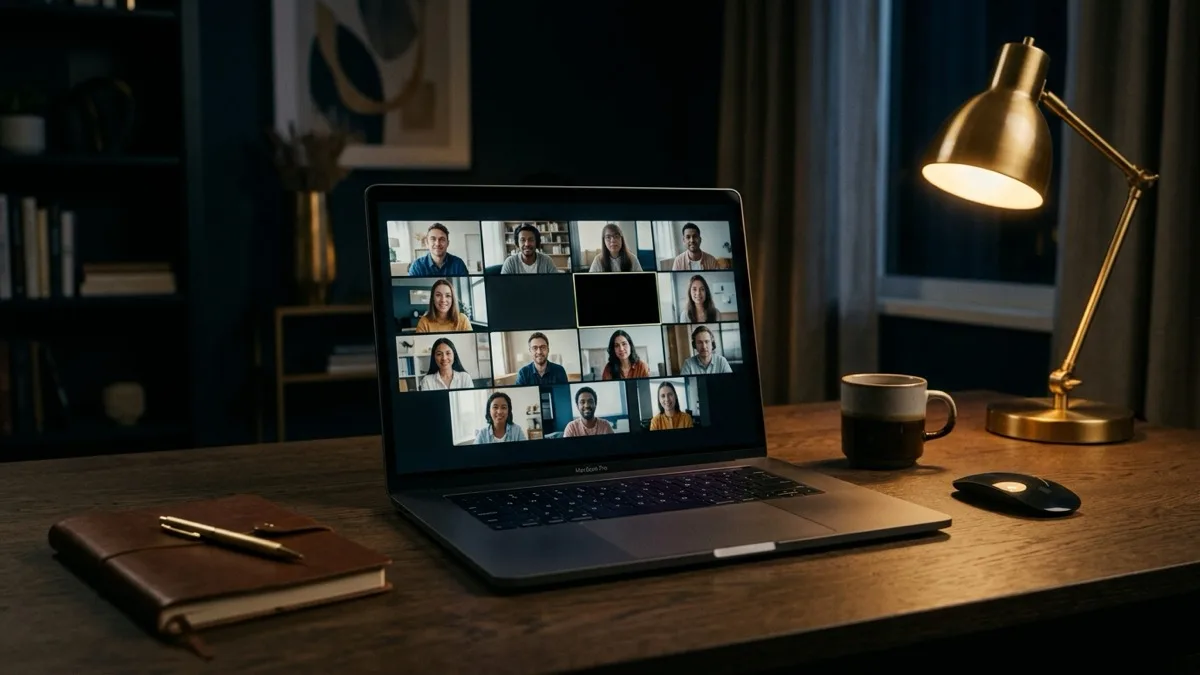
The fast answer: nine times out of ten, a webcam that is not working is being held by another app or blocked by a privacy permission. Close every other video app (only one can use the camera at a time), then check camera permissions in Windows or macOS settings and inside Zoom or Teams. If the camera works in the Windows Camera app or Mac Photo Booth but not in your meeting, the problem is the app, not the hardware. Still black? Our techs can fix the camera remotely on a flat-fee call.
What this guide covers
First: is it the camera or the meeting app?
Before you touch a single setting, run a thirty-second test that tells you exactly where the problem lives. On Windows, open the built-in Camera app from the Start menu. On a Mac, open Photo Booth. If you see yourself there, the camera, the driver, and the privacy permission are all fine, and the fault is inside Zoom, Teams, or whatever app went black. If the built-in camera app is also black or shows an error, the problem is lower down: a permission, a driver, a physical switch, or another app holding the device.
This one test saves you from blindly reinstalling drivers when the real issue was a wrong camera selected in Zoom. Knowing whether your hardware works changes which half of this guide you need.
It also matters which kind of failure you are seeing. A black screen usually means a permission or app conflict. Camera not detected or "no camera found" points at a driver, a cable, or a hardware switch. A frozen or stuttering image is typically the app or your connection, not the camera itself, and a quick app restart usually clears it.
#1 cause: another app is already using the camera
This is the single most common reason a webcam stops working, and almost nobody checks it first. Your computer lets only one application use the camera at a time. If Zoom grabbed it for your last call and is still running in the background, Teams will open to a black tile because the hardware is busy. The same happens with Skype, Slack huddles, OBS, the Windows Camera app, a browser tab that asked for camera access, or even a banking app left open on a second screen.
The fix is simple: close every other app that could touch the camera, not just minimize it. On Windows, right-click the taskbar, open Task Manager, and end Zoom, Teams, Skype, OBS, and any browser you used for video. On a Mac, quit those apps fully with Command-Q rather than clicking the red dot, which often just hides the window while the app keeps the camera. Then reopen the one app you actually need.
- Quit all other video and meeting apps completely.
- Close browser tabs that ever requested camera access (Google Meet, web Zoom, web Teams).
- Stop screen-recording or streaming tools like OBS or the Xbox Game Bar.
- If you are unsure what grabbed it, a full restart releases the camera cleanly.
If closing the conflicting app instantly brings your video back, you are done. If not, move to permissions.
#2 cause: the camera permission is switched off
Modern Windows and macOS both gate camera access behind a privacy permission, and a single update or accidental click can flip it off. When that happens, the app does not crash, it just shows a black rectangle, which is why this trips up so many people.
Windows 11 and Windows 10
Open Settings → Privacy & security → Camera. Make sure Camera access is on, then turn on Let apps access your camera. Scroll the list and confirm Zoom, Teams, or your browser is allowed. Crucially, scroll to the very bottom and enable Let desktop apps access your camera, because the classic desktop versions of Zoom and Teams hide under that single toggle rather than appearing in the per-app list.
macOS (Ventura, Sonoma, and Sequoia)
Open System Settings → Privacy & Security → Camera and toggle the switch on for each app individually. macOS often requires you to fully quit and reopen the app after granting permission before the camera will light up. If an app you just installed is missing from the list, open it and start a call once, and macOS will prompt you.
Permission lives in two places. Even with the system permission granted, you may also need to allow the camera inside Zoom or Teams the first time, so watch for a small prompt at the top of the app window when you join a call.
Physical checks: shutters, switches, and cables
It sounds obvious, but a closed privacy shutter is one of the most common "my camera is broken" tickets we close in under a minute. Many laptops and external webcams now ship with a tiny sliding cover or a physical privacy switch. Run a fingernail across the top of the camera lens and look for a sliver of plastic blocking it. Some ThinkPads, Dells, and HP laptops also have a keyboard shortcut (often a function key with a camera icon) that disables the camera entirely at the hardware level, which no software setting will override.
We jump on remotely, fix the permission, driver, or app conflict in minutes, and get you on the call; flat $149.99 USD; No Fix No Fee.
Book a remote fix — $149.99For an external USB webcam, the usual culprits are a loose or half-seated cable, a dead USB hub, or a port that is only delivering power and not data. Plug the webcam directly into a USB port on the computer rather than through a hub or dock, and try a different port, ideally one on the back of a desktop. If you are on a laptop docking station, test the camera with the laptop's own ports to rule the dock out. Built-in laptop cameras have no cable to check, so for those you can skip straight to drivers.
Drivers and Windows updates
If the camera is dead in every app, including the Windows Camera app, and nothing physical is blocking it, the driver is the next suspect. This is mostly a Windows issue; Macs manage camera drivers internally and almost never need attention here.
Open Device Manager (right-click Start, choose Device Manager) and expand Cameras or Imaging devices. Right-click your webcam:
- Choose Update driver → Search automatically first.
- If that fails, choose Uninstall device, then restart the computer. Windows reinstalls the camera driver automatically on reboot, which clears most glitches.
- If the camera broke right after a Windows update, open the driver's Properties → Driver tab and click Roll Back Driver to return to the version that worked.
A bad Windows update is a genuinely common trigger in 2026, where a cumulative update changes how camera permissions or drivers behave. If your webcam died the same week your PC updated, rolling back the driver, or uninstalling the recent update under Settings → Windows Update → Update history, often restores it. If a slow, glitchy machine is making all of this worse, our guide on why your computer is so slow covers the deeper cleanup. Mac users can lean on our MacBook support if a system update left the camera misbehaving.
Zoom and Teams specific fixes
Once the system itself can see the camera, the meeting app is the last place a problem hides, and the fix is almost always the same: the app is pointed at the wrong camera or needs a restart.
Zoom
In a meeting, click the small arrow next to the Start Video button and pick the correct camera from the list. Outside a meeting, go to Settings → Video and check the camera dropdown and the preview. If the preview is black, click Sign Out and back in, or quit and relaunch Zoom entirely. Keep Zoom updated, because an outdated build is a frequent cause of camera failures after an operating-system upgrade.
Microsoft Teams
Click your profile picture, open Settings → Devices, and choose the right camera under the camera dropdown. Teams is notorious for a cache that needs clearing: fully quit Teams, then on Windows delete the contents of the Teams cache folder and relaunch, or simply update to the newest version, which resolves most stubborn black-screen cases. As with Zoom, joining a call may trigger a one-time in-app camera permission you have to accept.
If video works but you keep dropping off calls, the real problem may be your connection rather than the camera, in which case our walkthrough on Wi-Fi connected but no internet will help.
Symptom to cause to fix, at a glance
Match what you are seeing to the most likely cause and the first thing to try.
| Symptom | Most likely cause | First fix |
|---|---|---|
| Black tile, but camera light is on or off | Another app is holding the camera | Quit all other video apps and browser tabs |
| Black tile in one app, works in another | Wrong camera selected, or app permission off | Pick the right camera in app settings; allow camera in the app |
| "No camera found" / not detected | Driver, cable, or hardware switch | Check shutter and USB; reinstall driver in Device Manager |
| Black in every app, including Camera app | System permission off, or driver fault | Enable camera in Privacy settings; roll back driver |
| Frozen or stuttering video | App glitch or weak connection | Restart the app; check your internet |
| Worked until a recent update | Update broke the driver or permission | Roll back driver or uninstall the recent update |
Work top to bottom: most cases are solved by the first two rows alone. If you have tried the obvious fixes and your camera is still black with a meeting about to start, you do not have to keep guessing.
RemoteFix 24/7 connects from anywhere, diagnoses the exact cause, and gets your camera live again on a flat-fee, No Fix, No Fee remote call. Book a remote fix and be back on camera in minutes.
Frequently asked questions
Why is my camera not working only on Zoom but fine everywhere else?
This almost always means Zoom is pointed at the wrong camera or its in-app camera permission is off. Open Zoom Settings, go to Video, and select the correct camera from the dropdown; you should see yourself in the preview. If the preview stays black, quit Zoom completely and reopen it, and make sure no other app, like Teams or a browser tab, is currently using the camera.
How do I fix a black camera in Microsoft Teams?
First confirm the camera works in the Windows Camera app. If it does, open Teams Settings, then Devices, and pick the right camera. If it is still black, fully quit Teams, clear its cache folder, and relaunch, or update to the latest version, which resolves most cases. Also check that no other video app is open, since only one app can use the camera at a time.
Why does my webcam show a black screen but the light is on?
A camera light that is on while the picture stays black usually means the app is receiving a feed but cannot display it, often a wrong camera selection or a privacy shutter that is physically closed over the lens. Check for a sliding cover on the camera, then confirm the correct camera is chosen in your meeting app and that the app has permission to use it.
My camera stopped working after a Windows update. What now?
Recent Windows updates sometimes reset camera permissions or break the driver. Open Settings, Privacy and security, Camera, and confirm access is on, including the desktop apps toggle at the bottom. If it is still dead, open Device Manager, find your camera, and use Roll Back Driver. You can also uninstall the recent update under Windows Update history to confirm it was the cause.
How do I know if my webcam is broken or it is just a software problem?
Run a quick hardware test: open the Windows Camera app or Mac Photo Booth. If you see yourself there, the hardware is fine and the issue is a setting or your meeting app. If those built-in apps are also black or report no camera, and you have ruled out a closed shutter and a loose cable, then a driver or hardware fault is likely and worth a closer diagnosis.