What Does 100% CPU Usage Mean (And Why Is My CPU at 100)?
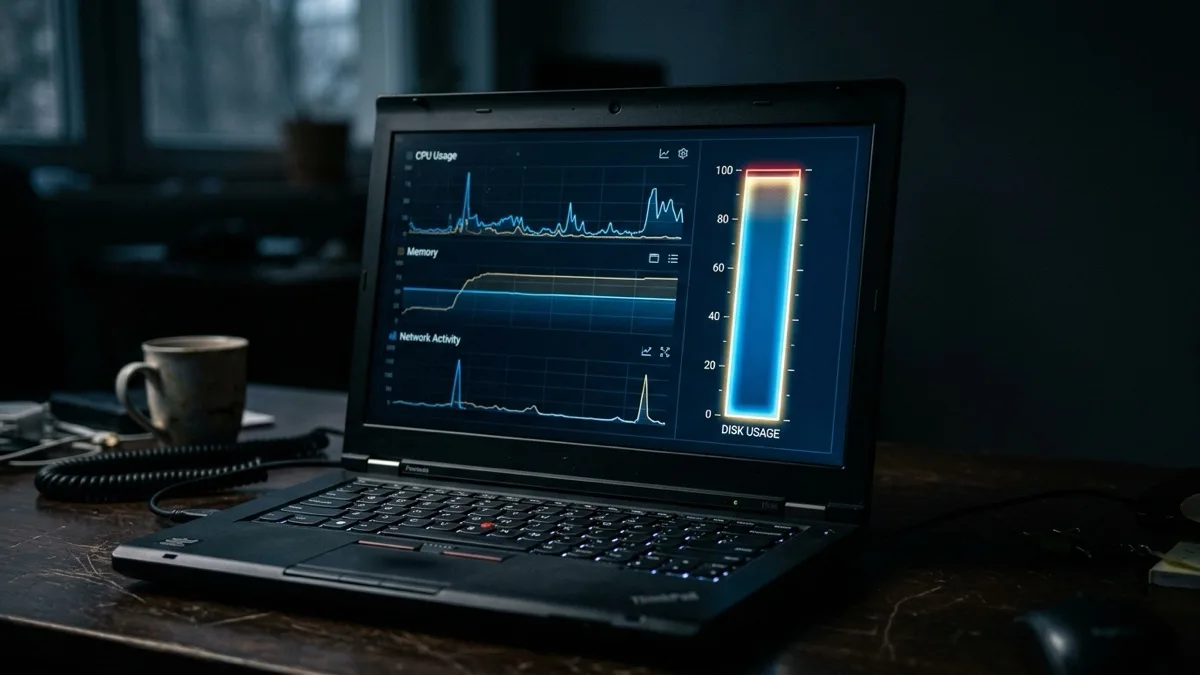
100% CPU usage means your processor is doing all the work it possibly can right now — every core is busy. Short bursts to 100% are completely normal when you open an app, install an update, or play video. The real problem is constant 100% CPU while the computer sits idle, which usually points to a runaway app, a background scan, or malware. Open Task Manager (Windows) or Activity Monitor (Mac), sort by CPU, and see what is on top. If an unknown process is pinning the CPU and you cannot stop it, our remote Windows support team can read your live process list and fix the real cause — flat $149.99 USD, No Fix No Fee.
What this guide covers
What does 100% CPU usage actually mean?
Your CPU (central processing unit) is the brain of your computer. It runs every instruction, from moving your mouse to rendering a video. CPU usage is simply the percentage of that capacity being used at any moment.
100% CPU usage means the processor is doing all the work it can — there is no spare capacity left. When that happens, everything else has to wait in line, which is why your machine feels sluggish, fans spin loud, and clicks take a beat to register.
Modern CPUs have multiple cores, so "100%" means the combined total across all of them is maxed out. A four-core chip can be at 100% because one core is overloaded and the operating system is shuffling work around, or because all four are genuinely busy. Either way, the symptom is the same: nothing has room to breathe.
This is not damage. A CPU at 100% is just working hard. The question that matters is why — and whether it should be working that hard at all.
When is 100% CPU normal, and when is it a problem?
Hitting 100% is not automatically bad. Plenty of everyday tasks legitimately demand everything your processor has, just for a few seconds.
Normal, healthy spikes happen when you:
- Open a heavy app like Photoshop, a game, or a video editor
- Install a Windows or macOS update
- Export a video, render, or compress a large file
- Start your computer (the first minute or two is always busy)
- Load a complex web page or run a virus scan you started
In all of these, the CPU climbs, finishes the job, and drops back down. That is exactly how it should behave.
The real problem is constant 100% at idle — your computer is sitting there with nothing open, yet the CPU stays pinned. That means something is running that should not be, or a process is stuck in a loop. If you have closed everything and usage will not fall below 90–100% after a few minutes, that is your signal to investigate. The same goes for sudden, unexplained slowdowns where the machine never recovers.
How to check what is using your CPU
You do not need any special software. Both Windows and Mac have a built-in tool that shows you exactly which process is eating your CPU.
On Windows 11 (and Windows 10):
- Press Ctrl + Shift + Esc to open Task Manager.
- Click the Processes tab.
- Click the CPU column header to sort — the biggest user jumps to the top.
- Watch for a minute. If one process stays near the top with high usage while idle, that is your culprit.
On a Mac (macOS Sequoia and earlier):
- Open Activity Monitor (Applications → Utilities, or search with Spotlight).
- Click the CPU tab.
- Click the % CPU column to sort highest to lowest.
- The process at the top with the largest number is what is loading your processor.
Write down the name of whatever is on top. If it is an app you recognize and are using, that is expected. If it is something you have never heard of, that is worth a closer look — note it for the malware section below. For a broader look at sluggishness, our guide on why your computer is so slow walks through related causes.
Common culprits and how to fix them
Once you know what is on top of the list, the fix usually follows quickly. Here are the most common causes of high CPU usage and what to do about each.
| Culprit | Telltale sign | Fix |
|---|---|---|
| Runaway or stuck app | One app pinned high, often "Not Responding" | Select it in Task Manager / Activity Monitor and End task / Force Quit |
| Too many background apps | Many small processes adding up; slow startup | Disable unneeded startup apps; close apps you are not using |
| Windows Update / antivirus scan | High usage that drops after 10–30 minutes | Let it finish, or schedule scans for overnight |
| Browser with many tabs | Chrome/Edge/Safari helper near the top | Close idle tabs; remove heavy extensions |
| Malware or cryptominer | Unknown process at 100% while idle | Run a full malware scan; see the section below |
| Driver or hardware issue | System process (e.g. System Interrupts) high | Update drivers; check Windows Update for fixes |
| Overheating | Loud fans, hot case, throttling, random behavior | Clean vents/fans; improve airflow; check thermal paste |
| Underpowered old CPU | Everything maxes out modern apps from day one | Reduce load, lower settings, or upgrade hardware |
Most of these are quick wins. If closing the obvious offender does not help, the cause is usually background activity, drivers, or something hiding — which is where it pays to dig deeper. A stuck disk can look similar, so it is worth ruling out using our guide to fixing 100% disk usage on Windows.
That can be malware or a stuck process. We read your live process list remotely and fix the real cause; flat $149.99 USD; No Fix No Fee.
Book a remote fix — $149.99When high CPU means malware (not just a busy computer)
The single most common reason a CPU stays at 100% with nothing open is malware — and the classic case is a cryptominer. This is software that quietly hijacks your processor to mine cryptocurrency for someone else. It does not steal files; it steals your CPU cycles, which is why your computer runs hot and slow for no visible reason.
Here is how to tell the difference between a busy computer and an infected one:
- Just busy: The high-usage process has a name you recognize (your browser, an update, an app you opened), and usage drops when the task finishes.
- Likely malware: An unknown process with a random or system-like name sits at 100% even with everything closed, comes back after you end it, or has no company / publisher listed.
- Strong warning sign: CPU spikes the moment you open a browser or visit certain sites, then keeps running after you close them.
If you suspect an infection, do not just End the task — it will usually relaunch. You need a full scan and removal. Start with a reputable scanner, and if the process keeps coming back or your scanner cannot remove it, get expert help. Our virus and malware removal service handles exactly this remotely, including miners that hide from basic scans. Note that an overheating machine can also behave erratically, and persistent freezing has its own causes covered in why your computer keeps freezing.
When to stop guessing and get help
Most high-CPU cases are solvable in a few minutes once you spot the offending process. But some are not, and chasing them yourself can waste hours or even make things worse.
It is time to get a professional involved when:
- An unknown process returns every time you end it
- Your antivirus finds something but cannot remove it
- CPU stays at 100% even in Safe Mode
- The machine overheats and shuts down before you can diagnose it
- You are simply not comfortable digging through processes and drivers
RemoteFix 24/7 fixes this from wherever you are — no shop visit, no shipping your computer anywhere. We connect securely, read your live process list, identify exactly what is pinning your CPU, and remove or repair it. It is a flat $149.99 USD with our No Fix No Fee promise, available worldwide in 130+ cities.
Whether it turns out to be a stuck app, a runaway update, or a hidden miner, you only pay if we fix it. Book a remote fix and get your CPU back to normal today.
Frequently asked questions
Is 100% CPU usage bad for my computer?
Not on its own. A CPU running at 100% is working hard, not getting damaged. Short bursts during demanding tasks are completely normal and harmless. The concern is constant 100% usage while idle, which means something is wrong — usually a stuck process or malware — and it makes your computer slow and hot until you fix the underlying cause.
Why is my CPU at 100% when nothing is running?
This almost always means something is running that you cannot see. The usual suspects are a background Windows Update or antivirus scan, a stuck process that did not close properly, or malware such as a cryptominer hijacking your processor. Open Task Manager or Activity Monitor, sort by CPU, and identify the process at the top to find the cause.
How do I fix 100% CPU usage?
First, open Task Manager (Windows) or Activity Monitor (Mac) and sort by CPU to find the top process. If it is a stuck app, end or force quit it. If it is a scan or update, let it finish. If it is an unknown process that keeps returning, run a full malware scan. Update drivers and clean dust if overheating is involved.
Can a virus cause 100% CPU usage?
Yes, and it is one of the most common causes of high CPU at idle. Cryptominers in particular hijack your processor to mine cryptocurrency, running it at full load while you do nothing. The telltale sign is an unknown process pinned near 100% that relaunches after you end it. A full malware scan and removal is the proper fix.
What is a normal CPU usage percentage?
At idle with nothing open, a healthy computer typically sits around 1–10% CPU. During normal use like browsing or office work, brief jumps to 30–70% are fine. Short spikes to 100% when opening apps or running updates are also normal. The problem is when usage stays at or near 100% constantly, even when the machine is idle.